The following comprises instructions for the Database Definition plug-in.
Contents
1. Introduction to the plug-in
1.3 Position in the Overall Software Package
1. Introduction to the plug-in
The Database Definition plug-in enables you to integrate and manage your databases that contain the data you require for your project.
A total of ten different database types can be integrated in SimAssist using the Database Definition plug-in.
This allows you to access the relevant data – such as measurements series for specific simulation runs – from any plug-in. The following database types are available:
•ODBC
To find out which database providers you need for each database type, please see the section on database provider.
Once integrated in SimAssist, data can be viewed, edited, checked and made available for plug-ins so that you can use it easily in your project.
The built-in Test Connection function allows you to check your connection to the integrated databases at any time.
You can also set this connection to be open at all times or configure your settings to save your password. To prevent data from being changed in error, the plug-in includes a function that allows you to flag databases as read-only.
1.3. Position in the Overall Software Package
The Database Definition plug-in is part of the 4base module. As it is assigned to the 4base module, the Database Definition plug-in is available as a basic feature in every SimAssist license package.
1.3.2. Links to Other plug-ins
As, as basic feature of SimAssist, the Database Definition plug-in is responsible for providing data, it is linked to all other plug-ins to which data can be added from the Database Definition plug-in.
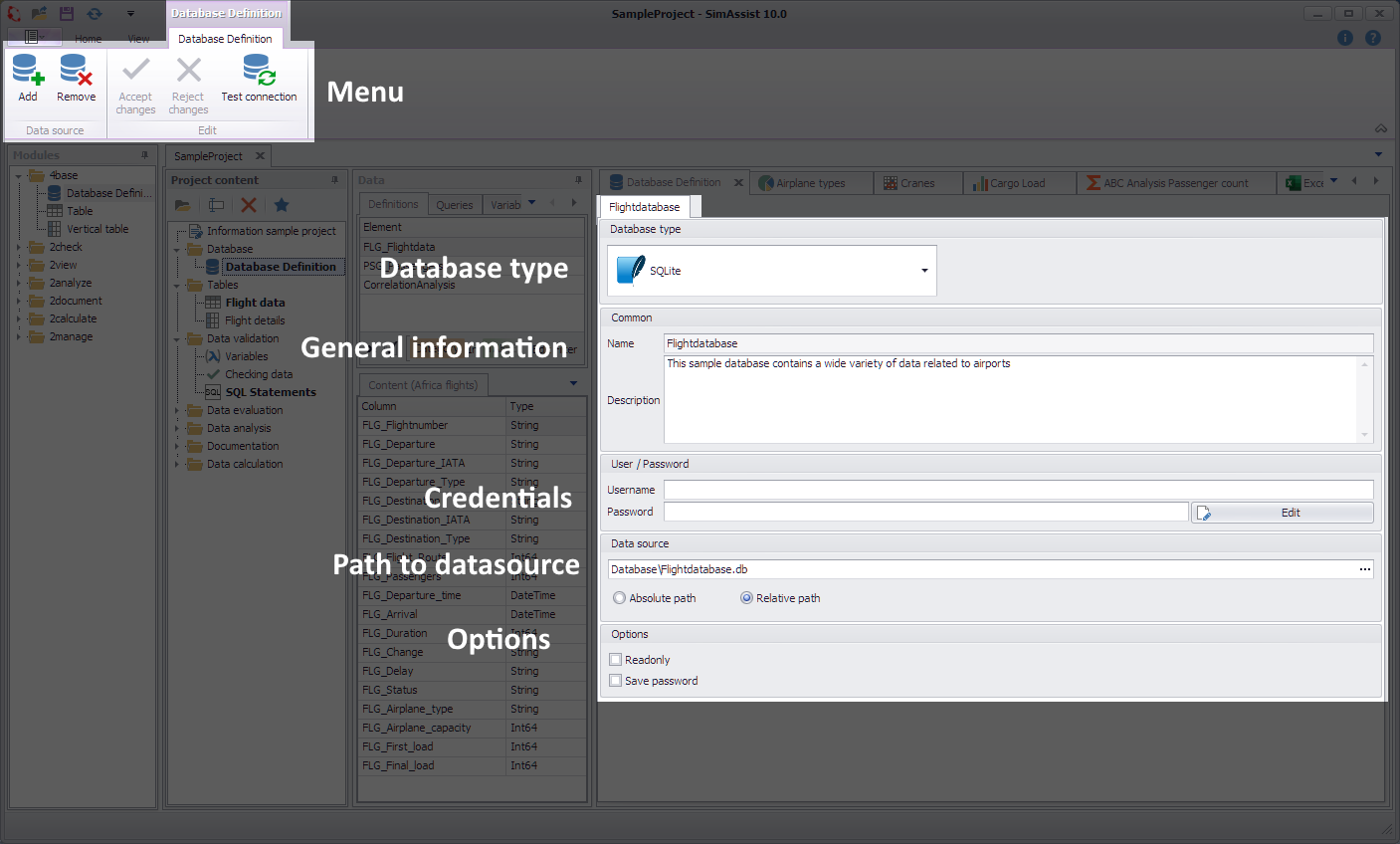
Figure 1 - Layout of the Database Definition plug-in
At the top of the plug-in is the main menu, where you can add new or delete existing databases. Below there is the tab bar, via which you can switch between the individual integrated databases.
Directly below is the database menu, containing features for testing connections and accepting or rejecting changes.
The database type can be selected in the next area down; the options will always include the six types listed above.
Because the Database Definition plug-in not only enables you to integrate your data, but also to manage it, the Common area gives you the option of assigning a name and description to the database in question, making it considerably easier to organize data when working with SimAssist.
If the database you want to use is access-protected, you can enter the appropriate access details in the next area down.
The data source area is for specifying the path to the database; this can be given as an absolute or relative location.
In the Options area, you can select the Save Password check box for the respective database, to save you from having to enter your password every time.
You can also configure the database status as read-only in this area.
The individual interaction options are presented below.
Button |
Description |
|
Via the Add button you create as many databases as desired in a Database Definition plug-in. The relevant databases are then displayed in the tab bar, where they can be selected. Alternatively, you can also add a separate Database Definition plug-in to your project for each individual database or for specific groups of databases. |
|
Via the Remove button the current database connection will be deleted. The corresponding data won't be available anymore. |
|
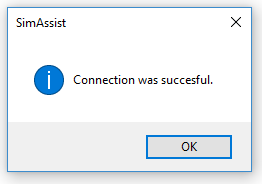
You can use the Test connection button to check whether the connection to the corresponding database and thus to the data contained in it works. You can choose the Test Connection button to check whether the connection to the relevant database, and therefore also to the data it contains, works (see figure 3).
Figure 3 - Test connection dialog |
|
When you change the configuration of the database connection, you need to choose Accept Changes to save your changes and make them effective. |
|
If you do not want to accept any changes already made, you can undo them by choosing Reject Changes. |




You can choose Options in the main SimAssist menu to make plug-in-specific settings (see the Options section). The following change options are available for the Database definition plug-in:
Option |
Description |
General |
|
Relative path |
Specifies whether newly created database definitions convert the path to a relative path (true) or save as an absolute path (false:default) |
© SimPlan AG - Hanau District Court, Commercial Register (Part B) 6845 - info@simplan.de - www.simplan.de/en