This chapter lists information and special features related to the ODBC data connection.
How to Configure an ODBC Database
An ODBC driver needs to be installed in order for an ODBC data source to be used. Please note that you require a 32-BIT version of the ODBC driver.
If you have a 64-BIT Microsoft Office package on your system, you will be able to install only a 32-BIT ODBC driver for a different Microsoft Office package (if, for example, you have installed Office 2007 64-BIT, you will require the 32-BIT ODBC driver for the Office 2010 package), otherwise you may experience compatibility issues.
To set up an ODBC connection, please navigate in your system to the path C:\Windows\SysWOW64 and run the odbcad32.exe file there. The ODBC Data Source Administrator now opens (see Figure 1).
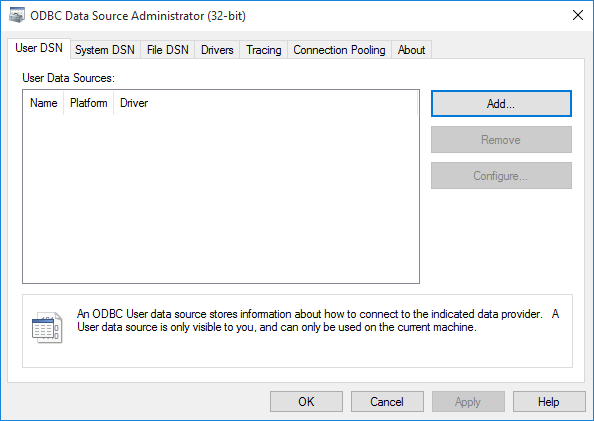
Figure 1 - ODBC Data Source Administrator
Choose Add... to add a new ODBC connection. Alternatively, you can also edit an existing connection.
To do so, select the desired connection and then choose Configure. In both cases, the Create New Data Source window opens (see Figure 2).
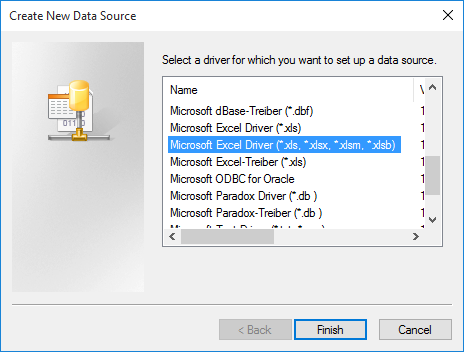
Figure 2 - Create New Data Source window
This window contains for selection all the file types supported by your ODBC driver. For example, an Excel workbook can be set up as a data source.
For an xlsx file, the entry Microsoft Excel Driver (*.xls, *.xlsx, *.xlsm, *.xlsb) would need to be selected (see Figure 2).
Choose Finish to confirm your selected file type. The data source is then set up, that is, the necessary settings are made (see Figure 3).
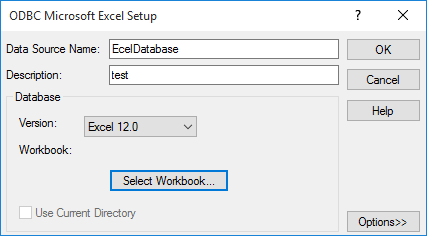
Figure 3 - ODBC setup
First, assign the data source a name (this will later be used to locate the database in SimAssist) and, if desired, a description.
All you need to do next is select the right Excel version for your workbook and choose Select Workbook... to specify the file. You can then choose OK to conclude setting up the ODBC data source.
Figure 4 shows the Database Definition plug-in. If you specify ODBC as the database type here, you will be able to display a selection of all ODBC data sources set up in the system in the drop down menu in the Data Source area.
Select your desired source here and you can use the relevant data in SimAssist just like a normal database.
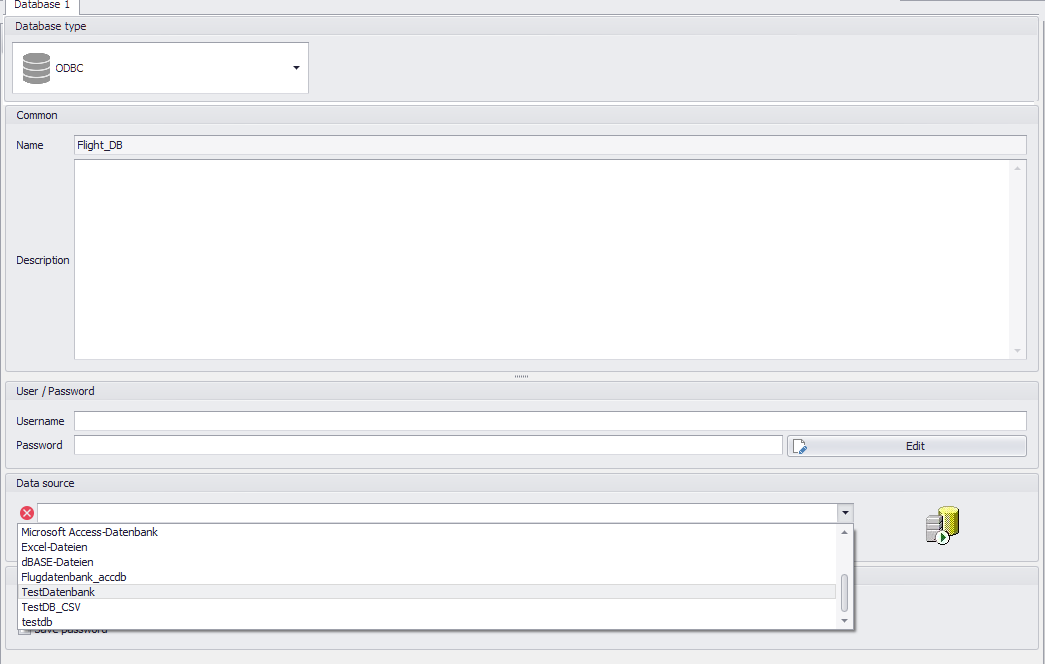
Figure 4 - Select ODBC data source in SimAssist
© SimPlan AG - Hanau District Court, Commercial Register (Part B) 6845 - info@simplan.de - www.simplan.de/en