This chapter lists information and special features relating to Excel and CSV data connections. The display in the Data Source area depends on whether an Excel or CSV file is used as the data source.
For an Excel file, you can select from the available spreadsheets in the Excel file using the Table Selection area. In addition, you can specify for each sheet where the data should start to be imported (see Figure 1).
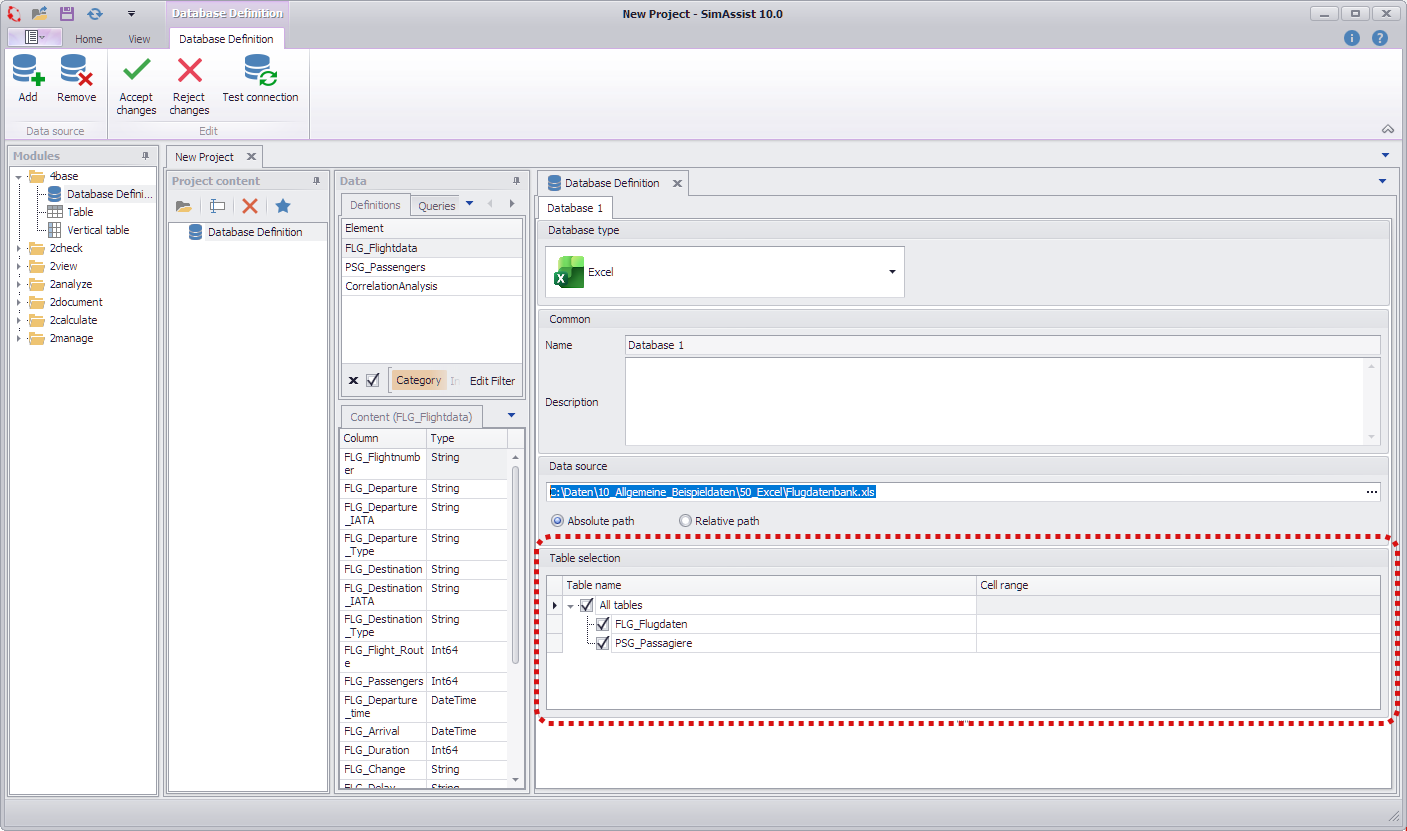
Figure 1 - Excel cell range
The following input options are available:
Designation |
Example |
Description |
Series designation |
3 |
all rows below including row 3 are read in |
Column designation |
AB |
all columns to the right of column AB inclusive are read in |
Cell designation |
C5 |
the entire area to the right and below including the cell is read in |
Row range |
3:8 |
the rows 3 to 8 are read |
Column range |
D:K |
the columns D to K are read |
Cell range |
E3:J7 |
only the selected range is read |
|
Information In the case of column headings that contain one of the following special characters, these are replaced by "_" during import . ( ) [ ] . Example: Column 1 is displayed in SimAssist as Column_1. The following special characters may be contained in a column heading: ! " ² ³ % & / { } = ? \ ´ ` + - * ~ # ' _ : , ; < > | ^ ° @ € µ |

Supported formats
•*.XLSX
•*.XLSM
•*.XLS
•*.CSV
If a CSV file is used as the data source, a field appears in the Data Source area where the desired separator can be customized.

Figure 2 - CSV separator
The following format is required for CSV:
•Text in quotation marks
•Format: Language independent (date + numbers in English format!)
•Encoding: UTF-8
•First line contains column names
Workaround for column formatting
The following steps can be performed to convert a column to a specific format in Excel:
•Select column in Excel
•Assign the desired format Standard, Number, Date,... (even if this is/was already preset)
•Keep column selected
•In the menu Data call the function Text in columns
•Click directly on Finish
© SimPlan AG - Hanau District Court, Commercial Register (Part B) 6845 - info@simplan.de - www.simplan.de/en