This chapter lists information and special features relating to Plant Simulation XML data connections.
Configuring Plant Simulation XML
Plant Simulation XML is integrated as an interface in the database definition plug-in and provides a way to connect data exported in Plant Simulation XML format to SimAssist.
The structure contains some of the same elements as described in the Database Definition chapter. Therefore, only the Plant Simulation XML-specific elements are explained below.
When a file is selected, it is checked against the Plant Simulation-specific XML schema. If the check fails, an error message is displayed.
If the check is successful, the column names and types of all columns in the table, including all sub-tables, are displayed in a tree view.
The individual columns can be selected using a check box. Columns of type Table are deselected by default. All other column types are selected by default.
Users can use this selection to determine which columns of the table are to be loaded. The selection is saved with the project and restored when the project is opened.
The RowIndex column (if present) is treated like any other column and is always in the first position.
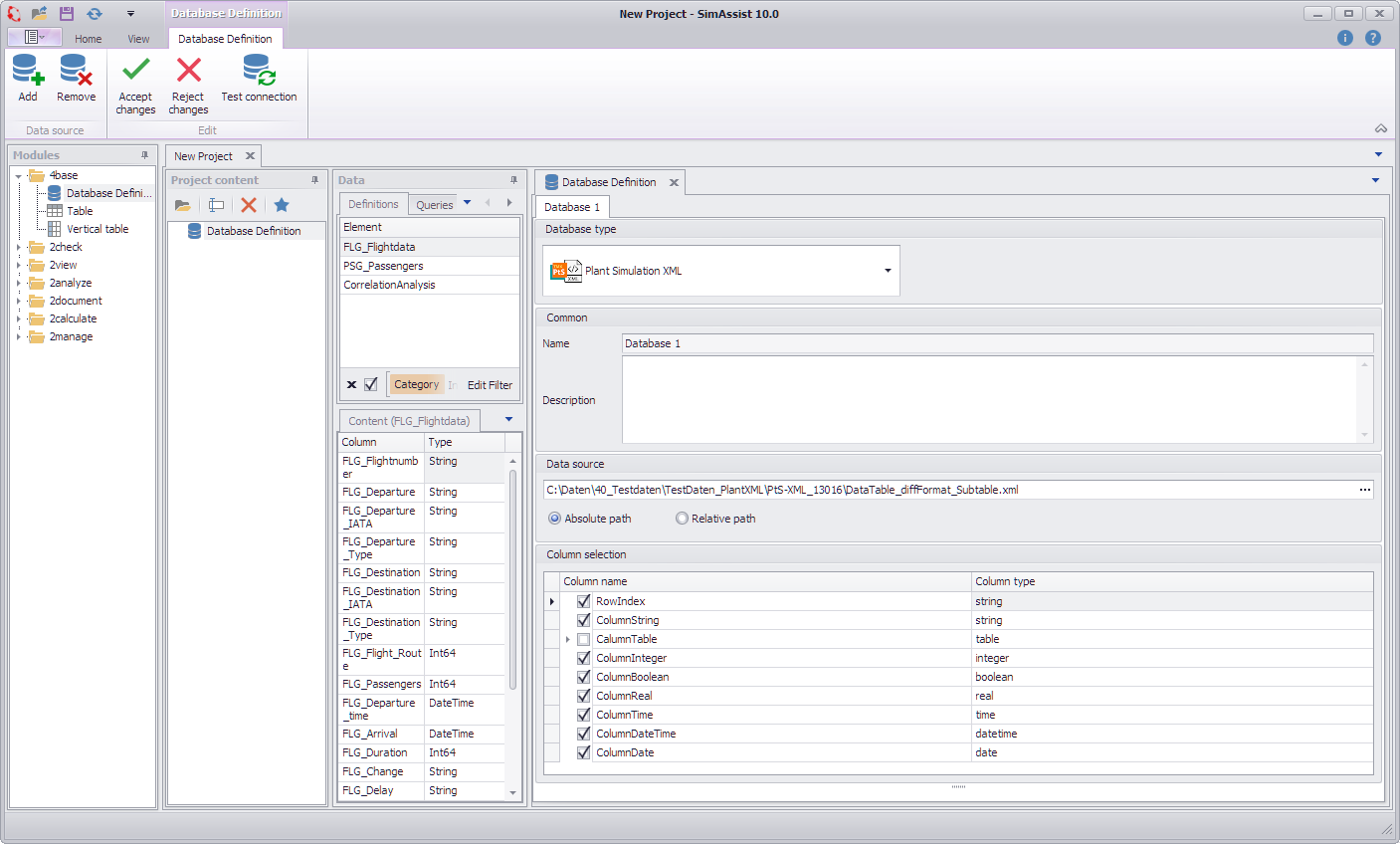
Figure 1 - Plant Simulation XML overview
Sub tables are loaded as a product of the row values of the parent table and all values of the respective sub table.
This requires that the schema of the sub-tables within a table column is the same. If the schemas of the sub-tables do not match, the selection option in the tree view is disabled.
It is then not possible to load the sub-tables. The procedure is illustrated in the following example, Table 4 to Table 7.
The table loaded in SimAssist has a flat structure and can be used like any other data source, either directly or in SQL expressions.
Unique column names are required in the flat table structure. For this reason, the column names of columns from sub-tables are composed of the name of the parent column.
Table 4 – Example of main table from Plant Simulation
Country (String) |
Capital (String) |
Population (Integer) |
Cities (table) |
Spain |
Madrid |
48,000,000 |
Cities-Spain |
France |
Paris |
68,000,000 |
Cities-France |
Table 5 – Example of sub-table Cities-Spain from Plant Simulation
City (String) |
Population (Integer) |
Bilbao |
344,000 |
Barcelona |
1,620,000 |
Table 6 – Example of sub-table Cities-France from Plant Simulation
City (String) |
Population (Integer) |
Nice |
348,000 |
Lyon |
522,000 |
Table 7 – Example of loaded results table in SimAssist
Country (String) |
Capital (String) |
Population (Integer) |
Cities_City (String) |
Cities_Population (Integer) |
Spain |
Madrid |
48,000,000 |
Bilbao |
344,000 |
Spain |
Madrid |
68,000,000 |
Barcelona |
1,620,000 |
France |
Paris |
68,000,000 |
Nice |
348,000 |
France |
Paris |
68,000,000 |
Lyon |
522,000 |
The procedure described above can be used to handle any number of nesting levels (sub tables in sub tables).
However, a high level of nesting also results in frequent duplication of data in the results table, which can have a negative impact on performance.
Determining column names
Tables in SimAssist require unique column names (string type). These are determined from the XML file as described below:
•If ColumnIndex nodes exist (this is the case if the column index is active in the Plant Simulation table)
--> Transfer the values as the name of the column in the data table (as text, regardless of the Plant Simulation data type)
•If ColumnIndex nodes do not exist (this is the case if no column index is active in the Plant Simulation table)
--> Column name is derived from Column_ + index of the column in Plant Simulation
oIf Row Index is active: First column in DataTable: Column_0
oIf Row Index is not active: First column in DataTable: Column_1
•If a column name already exists, a “_” and a number starting with 1 are appended to the name.
•If the new name also exists, the number is incremented until the new name is unique.
The names of sub-table columns are prefixed with the name of the parent column, with an underscore as a separator (see Table 7).
Checking the schema of sub-tables
The schema of sub-tables matches if the following conditions are met in the XML file:
•The ColumnIndex node (name) of the tables is the same (if present)
•The number of Column nodes within the table is the same
•The Column nodes at the same position have the same type attribute
Processing the XML file
SimAssist performs the following steps to create a data table that can be used in SimAssist:
1.The user specifies the file path to the XML file or loads the path from the settings
2.Loading the complete XML document into the working memory Development specification
3.Checking the XML schema
4.Determining the column names and types of all columns in the main table and sub-tables
5.Confirming the selection of columns by the user or applying the saved selection
6.Creating an SQLite database in the temporary folder
7.Writing the values of the selected columns to the database, where a flat structure is created as described above
8.Discarding the XML document from the working memory
After an XML file is connected, it is monitored. If the file is changed, the steps above are repeated starting with step 2.
Processing data types
•Floating point numbers:
oPlant Simulation always stores floating point numbers (real, time, money, length, weight, speed, acceleration) in the same format x.yz (with a dot). This is language-independent.
•Date values:
oPlant Simulation saves date values in two different formats:
▪dd.MM.YYYY HH:mm:ss.ffff
▪YYYY/MM/dd HH:mm:ss.ffff
oBoth formats are automatically recognized and read.
•Date (without time) is read as DateTime with a time of “00:00:00.0000”.
•Boolean values are read as text.
© SimPlan AG - Hanau District Court, Commercial Register (Part B) 6845 - info@simplan.de - www.simplan.de/en