This chapter lists information and special features related to the XPath data connection.
How to configure XPath
XPath is integrated as an interface into the database definition plug-in and provides a way to connect XML-data to SimAssist.
The plug-in structure contains the same elements already described in section 2.1 in the chapter Database definition. Therefore, only the XPath-specific elements are explained below.

Figure 1 - XPath overview
In the data source area you can set settings for the data source (see Figure 2).
In the Command field, a XPath-command has to be entered. This is used for node selection during the conversion. By default, the command / * is set here, which selects all nodes.
In the Path field, the file path to the XML file is specified (similar to section 2.1 in Database definition). Here, a distinction can be made between relative and absolute path specification.

Figure 2 - data source
Two options are available in the Options area (see Figure 3).
When the Deep check box is active, the entire XML file is converted into a table, even if the structure of the XML tree can not be mapped to a two-dimensional table.
All deeper nodes are "rolled out", meaning new nodes are added as new rows / columns.
The Load XML from File check box allows you to manually enter the XML document and specify the path to an XML file.
If the check mark is removed from Load XML from File, a text box appears in which the XML code to be used can be written manually (see Figure 4).

Figure 3 - Options
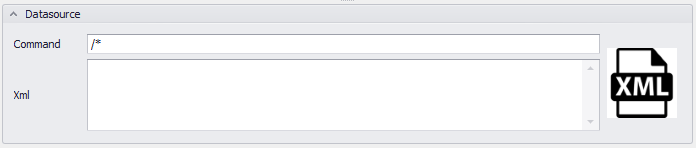
Figure 4 - Manual input for XML code
As soon as all necessary settings have been made in the upper areas, a preview of the resulting table can be displayed by clicking the Abfrage ausführen button.
If the Tree check box is activated, a tree structure is displayed in addition to the table.
Setting a number in the field Limit of Rows allows you to specify the number of rows to display (the value 0 corresponds to all lines).
Once a first preview has been created, the data type of each column can be determined in the DataTypes field (see Figure 5).

Figure 5 - Preview
|
Information: •If you do not see all the lines in the preview, because a limit has been set, it may happen that not all columns are listed. •If an XSD file exists for an XML file, it must have the same name and the same directory. The XSD file is then automatically read and applied, the manual specification of data types for the individual columns is then deactivated. •It might happen that in Deep mode data types for columns are overlapping. By default, the first read-in data type is used here. If there are complications, the data type is changed to String. |

© SimPlan AG - Hanau District Court, Commercial Register (Part B) 6845 - info@simplan.de - www.simplan.de/en