Contents
All evaluations in SimAssist take place within projects.
Projects thus represent the framework with which you can structure your work with SimAssist - for example, it makes sense to create several SimAssist projects for the evaluation of several experiments.
The following chapters are intended to provide an overview of project management.
Autosave
Starting with SimAssist version 5.0 an auto save function is available in the general options (see figure 1 Auto-Recovery).
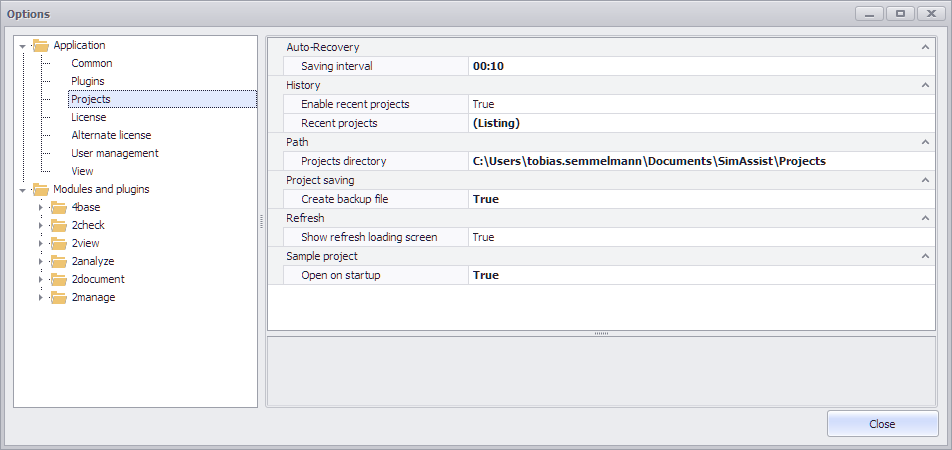
Figure 1 - Parametrize Autosave in the Options
This allows the user to set SimAssist to automatically save the project at specified intervals. The following criteria were taken into account when implementing the function:
1.Feedback on the auto save is given via the status bar (for about 5 seconds):

2.File format for the Autosave file: *.SIMASSIST file.
3.If the project was encrypted with a password, the auto save files are encrypted with the same password.
4.Plug-ins that do not store their data or do not store their data completely in the *.SIMASSIST file are not taken into account in the auto save process.
5.Storage location for the auto save files is the TEMP folder (%TEMP%).
6.If an auto save file exists, it will be displayed when opening a project. The user can choose to open either the auto save file or another project. If the auto save file is not opened, it will be discarded (see figure 2).
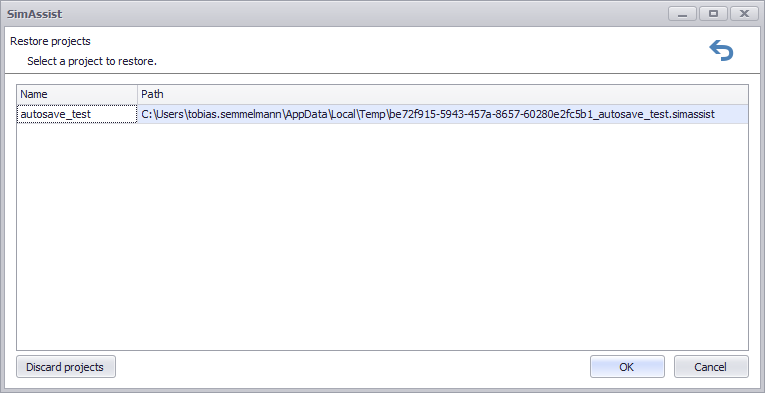
Figure 2 - Load Autosave File
If this dialog is closed by the user, it can be opened with the button Restore projects as long as the current SimAssist instance is open
7.Autosave files are deleted when the project is closed without further prompting.
8.Possible errors while deleting the auto save files are logged, i.e. written to the SimAssist log file, but not displayed.
9.Possible errors while creating the auto save file are logged. Instead of the message from point 1 the text Autosave failed is displayed for 5 seconds in the status bar.
10.Other instances do not actively search for old auto save files to delete them. This is done by the user or the system by deleting the TEMP directory.
11.If an auto save process failed, the system will continue to try to execute the auto save at the set interval.
12.To disable the auto save mechanism, it is sufficient to set the duration to "00:00".
Sample project
Since SimAssist version 3.0, a sample project incl. Database (SQLite) is included in the installation.
The project is opened once at the first start of SimAssist and stored together with the database in the following location: C:\Users\Public\Documents\SimAssist
It contains an example for each plug-in from the standard scope of SimAssist, as well as brief explanations of the individual plug-ins.
The dialog in Figure 1 can be used to define the behavior of the example project when SimAssist is started.
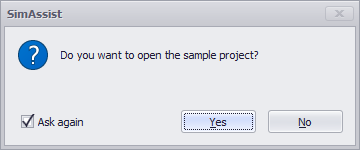
Figure 3 - Dialog loading sample project
© SimPlan AG - Hanau District Court, Commercial Register (Part B) 6845 - info@simplan.de - www.simplan.de/en