In order to open an existing project, you can use the Open button (see figure 1) in the software's main menu. This will open a selection dialog.

Figure 1 - Open a project
The selection dialog (see figure 2) lists every project, that could be found in the project directory. When you double click on the project's name it will be load.
In addition to the alphabetical listing of all projects via the tab Projects you can call the Recent projects tab.
This will show you all projects, you have worked with in the past. Even in case of a huge number of projects, this function can be very helpful.
The selection dialog provides a quick possibility in order to open the project directory via the windows explorer when you click on the three dotted button, highlighted in figure 2.
Load plug-ins as required
In the lower area of the dialog, there is a drop down menu for selecting the loading mode. You can choose between the following modes:
•Pause before database access: Option to pause the loading of the project before accessing the database connected to the project.
•Load no plug-ins: The project is loaded without plug-ins.
•Load only favourites: Only the plug-ins that have been marked as favorites in the project are loaded. All plug-ins dependent on a plug-in marked as a favorite are also loaded.
•Load all plug-ins: Normal loading process in which the entire project is loaded.
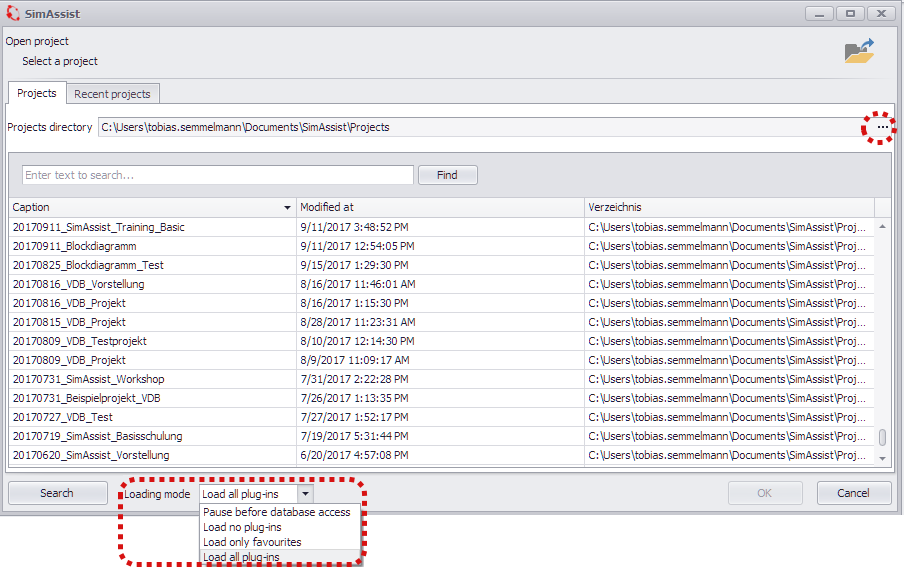
Figure 2 - Selection dialog for open a project
The table, which lists the projects, can be adjusted individually. For this a context menu is available, which can be called through a right click on the header row.
The context menu provides functions like sorting, grouping or a column chooser. Via the function Column Chooser the table can be extended with additional columns and thereby with additional information.
For example the column Core version, which lists the SimAssist version the project was created with, is available.
In order to display the new column, you have to drag it out of the Customization window and place it in the table.
While a project is loading, a dialog is displayed showing information about plug-ins that have already been loaded and a listing of plug-ins that are currently loading (see Figure 3).

Figure 3 - Loading screen
There could be problems during loading a project if the database connections aren't up to date anymore. In this case all calculations in the single plug-in instances couldn't be processed.
In order to solve this problem, SimAssist identifies a broken database connection, then stops the loading process and shows the hint you can see on figure 4.
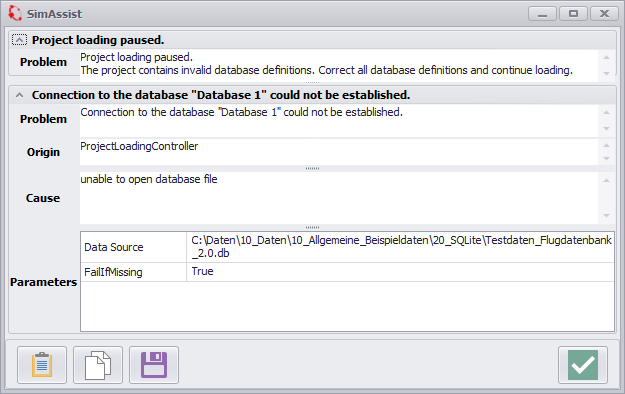
Figure 4 - Hint about a broken database connection
When you see this hint SimAssist will get into a correction mode and activates the affected database definition instance.
So you can see immediately which database couldn't be reached and then fix the broken connection (see figure 5).
After that the database is ready for use again. In order to tell SimAssist, that the problem about the broken database connection is solved, you have to click on the button called Continue loading.
Now your project will be load completely.
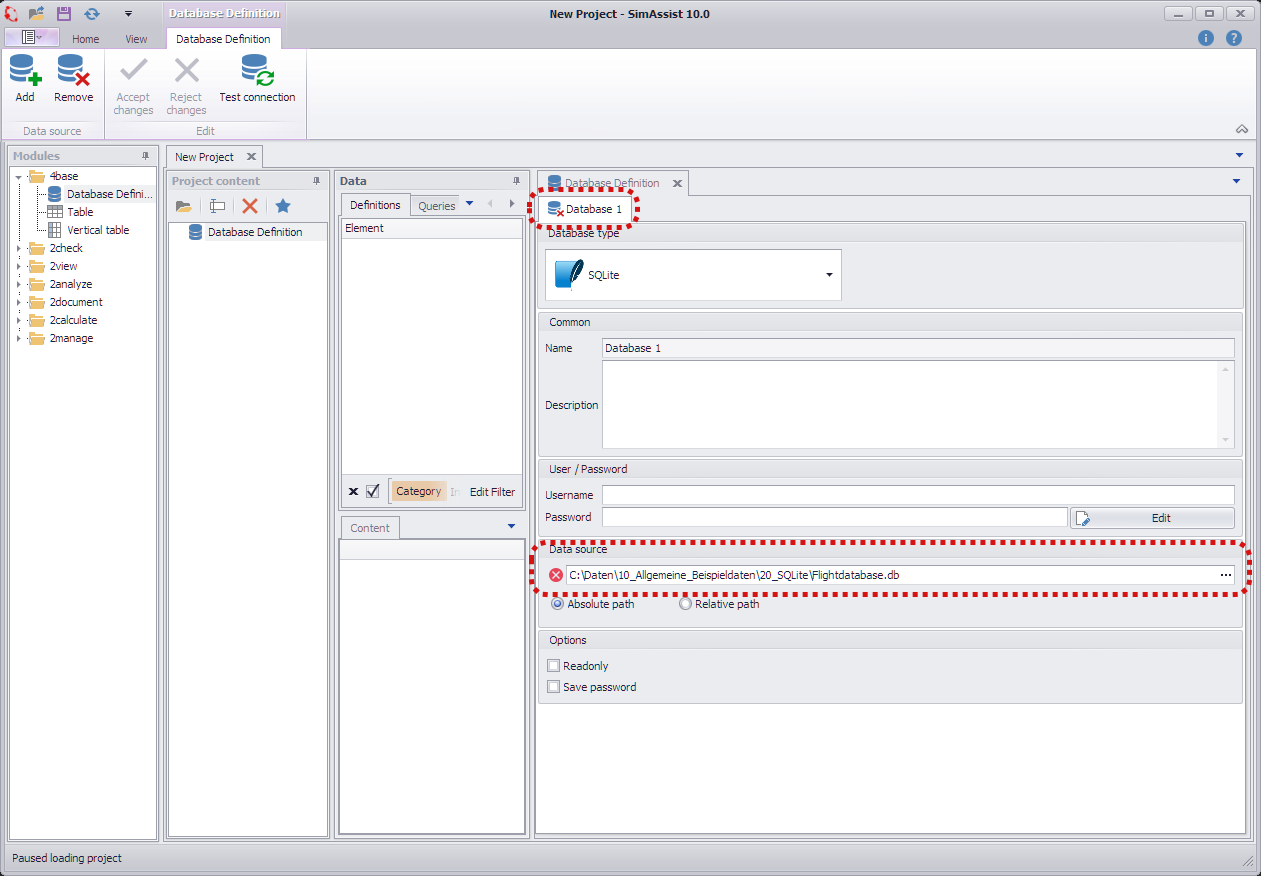
Figure 5 - Correct a broken database connection
If you want to skip the correction of the database connection, you can click on the button called Cancel loading. Although your project will be loaded after that, all calculation must started manually.
© SimPlan AG - Hanau District Court, Commercial Register (Part B) 6845 - info@simplan.de - www.simplan.de/en