In this section individual editors, which can be called for example via the ribbon bar, are listed and explained:
Contents
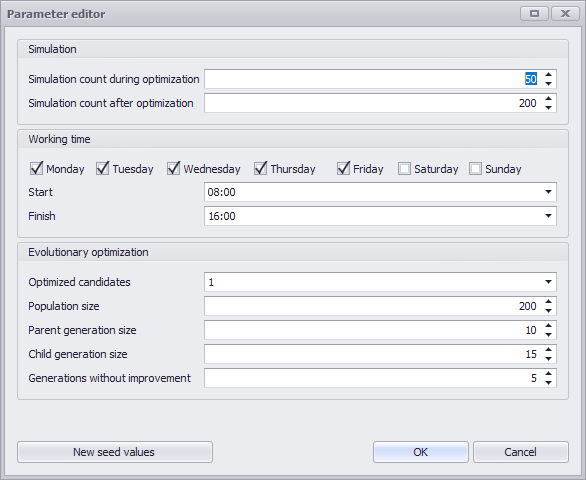
Figure 1 - Parameter Editor |
|
||||||||||||||||||||||||||
The following table lists and explains the buttons in the editors:
Button |
Function |
|
Sets new values for the starting point of the random number streams (only in the parameter editor). Hint: Since the result of the simulation/optimization is not saved, the New seed values button must be clicked to get new results. If the button is not clicked and a new calculation is started, the same random number stream will be used for calculation. |
|
The New button creates a new entry for a formula or a distribution |
|
The Copy button copies the formula or distribution selected in the editor |
|
The Delete button deletes the formula(s) or distribution(s) selected in the editor |
|
The Import button opens the Windows Explorer to import one or more distributions in XML format (only distribution editor) |
|
The Export button opens Windows Explorer to export one or more distributions in XML format (Distribution Editor only) |
|
The Apply to selected button applies the formula or distribution selected in the editor to the elements selected in the project plan view. After a formula/distribution is applied, it is available from the drop down of the respective column (see Configuration View). |
|
The Apply to all button applies the formula or distribution selected in the editor to all elements in the project plan view. After a formula/distribution has been applied, it is available via the drop down of the respective column (see Configuration view). |




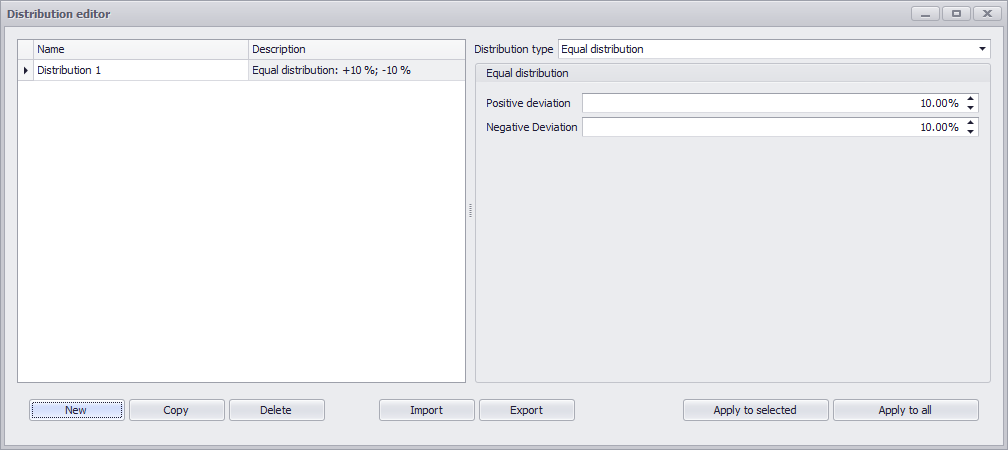
Figure 3 - Distribution Editor
With the help of the distribution editor, distributions can be created and applied. The following distributions are available for selection:
•Normal distribution
•Equal distribution
•Discrete distribution
On the left side the created distributions are listed, on the right side of the editor they can be parameterized.
|
Information Normal distribution and Discrete distribution cannot be combined with formulas. |

Depending on the selection in the drop down of the editor, other input options are displayed:
Figure 4 - Input Normal Distribution
|
The time unit for the normal distribution can be selected via drop down:
Values for the mean and standard deviation can be entered either by keyboard input or by using the arrows. |
Figure 5 - Input Equal Distribution
|
For the equal distribution, the respective deviations (positive and negative) can be entered in %. |
Figure 6 - Input Discrete Distribution |
The time unit can be selected via the drop down:
With the Discrete Distribution, the duration of a task and a frequency for this can be specified.
Subsequently, the probability of occurrence is calculated. |
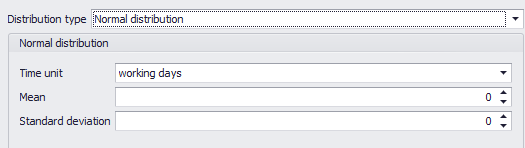

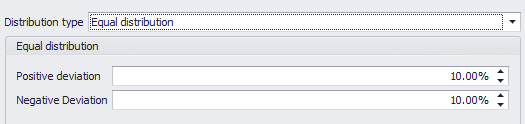
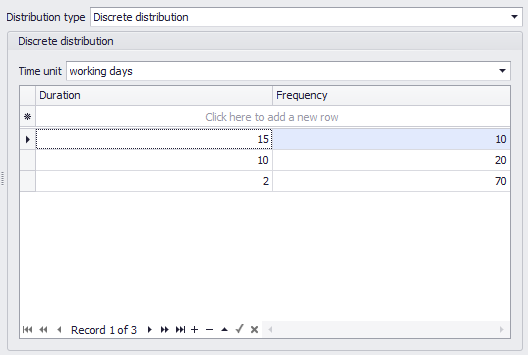
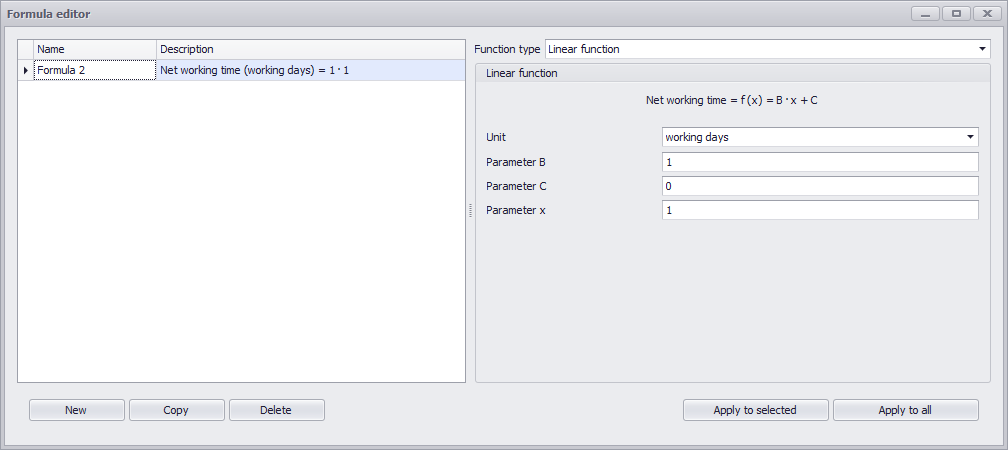
Figure 7 - Formula Editor
Formulas are used to calculate the working time of individual tasks depending on external variables.
Formulas can be created and applied with the help of the formula editor. The following formulas are available for selection:
•Linear function
•Exponential function
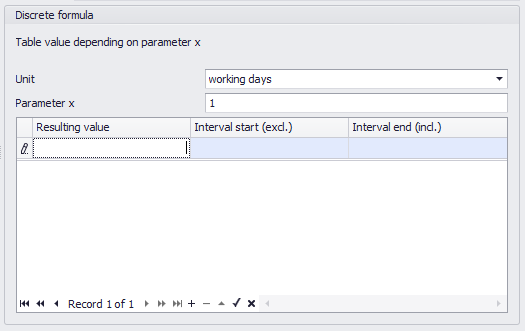
•Discrete formula
Depending on the selection in the drop down of the editor, other parameterization options are displayed for the respective formula:
The Unit drop down can be used to choose between the following units:
•Working hours
•Working days
•Working weeks
•Probability (= probability of repetition)
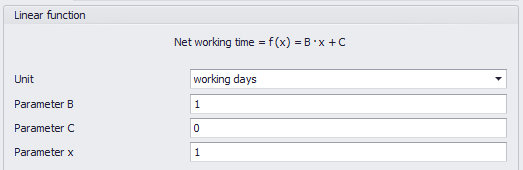
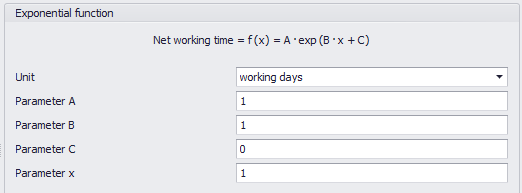
The respective parameters of the function can be specified via the input fields.
Figure 8 - Linear Function
Figure 9 - Exponential Function |
Figure 10 - Discrete Formula |
Use of variables
Variables can also be used in the formula editor, which were created via the Variables plug-in.
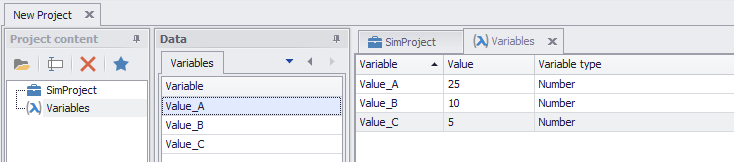
Figure 11 - Variables Plug-in
|
Information Only variables of type number can be used. |
After they have been created, they can either be dragged and dropped from the Variables tab in the data area to the corresponding line in the formula editor, or they can be referenced by entering text.
With both variants, the values are automatically checked for correct entries.
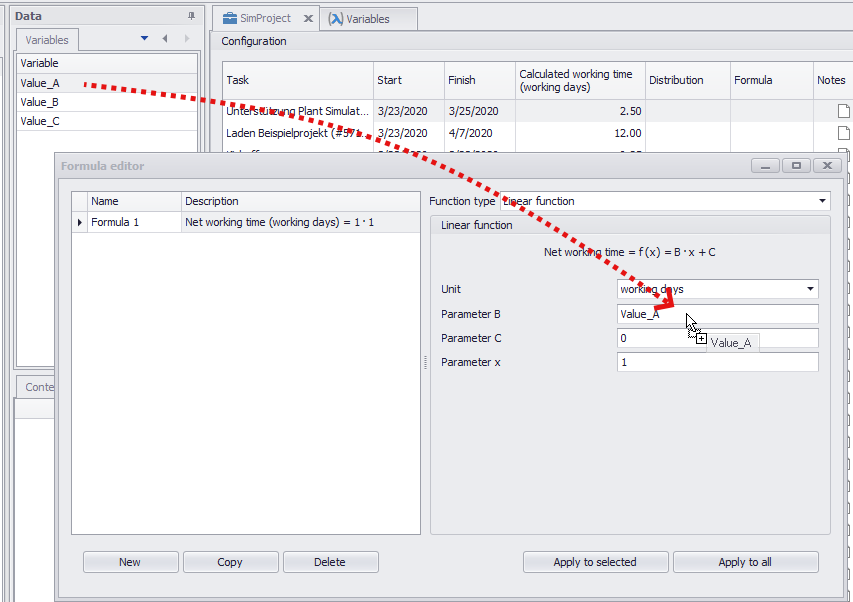
Figure 12 - Adding Variables to Formulas
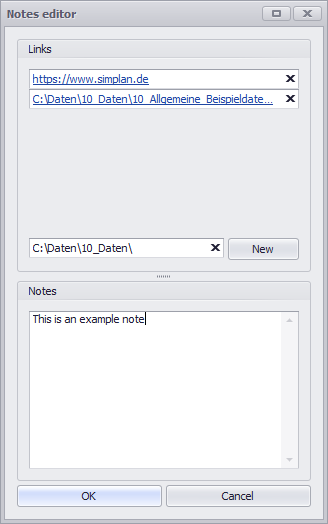
In the Links area, all links are listed.
Figure 13 - Note Editor |
Links can be internet links (https://www.simplan.de/) as well as links to files/folders. With a simple mouse click, the links can be retrieved at any time. New links can also be added by dragging and dropping them onto the free space in the Links area. New links can be entered using the text field and added to the list using the New button.
In the Notes area a new note can be added by text input Clicking the OK button saves the changes and closes the editor. |
© SimPlan AG - Hanau District Court, Commercial Register (Part B) 6845 - info@simplan.de - www.simplan.de/en