This section lists and explains individual columns in the configuration view:
Column heading |
Function |
|||||||||||||||||||
|
Lists the tasks loaded from the project plan |
|||||||||||||||||||
|
Displays the start time of the respective task specified in the project plan. Using the context menu (right-click on the column header), the desired date format can be set, among other things. |
|||||||||||||||||||
|
Displays the end time of the respective task specified in the project plan. Using the context menu (right-click on the column header), the desired date format can be set, among other things. |
|||||||||||||||||||
|
Here the working time specified in the project plan is read out and specified in days (column is hidden by default). Via the context menu of the column, both the time unit (hours/days/weeks) and the number of decimal places can be parameterized. |
|||||||||||||||||||
|
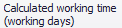
The calculated working time (in days) results from the formula used (see also chapter Options - Editors section Formula editor). If one is specified in the Formula column, the original duration (Net. Working time(working days)) is ignored. To update the content of the column, either the Calculate working time button from the menu or the Recalculate entry from the context menu can be used. (Re)calculating the working time will also update the display of the project plan on the right. The context menu can also be used to parameterize both the time unit (hours/days/weeks) and the number of decimal places. |
|||||||||||||||||||
|
Additionally, equal distributions can be defined directly by entering text in the respective cell:
|
|||||||||||||||||||
|
|
|||||||||||||||||||
|
Here you can click on white paper icon |







 to open the note editor. As soon as a note has been created, the appearance of the icon changes:
© SimPlan AG - Hanau District Court, Commercial Register (Part B) 6845 - info@simplan.de - www.simplan.de/en