To use SimAssist actively, a valid license is required. If no valid license is found, the application is in read-only mode and you can use SimAssist read-only.
How to borrow a license for SimAssist is described in the chapter Menu in Sidebar Menu - Borrow License.
To set up a license, first open the options via the main menu and then navigate to Application and finally License (see Figure 1).
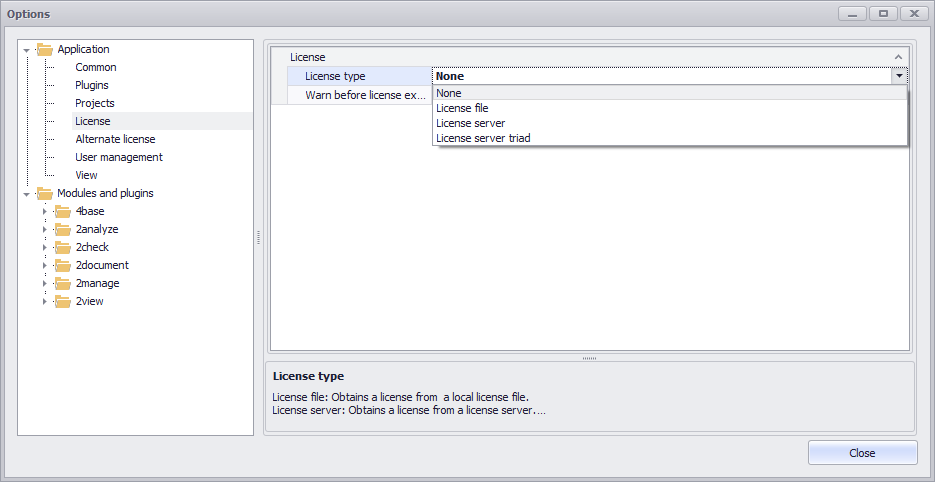
Figure 1 - Select license type
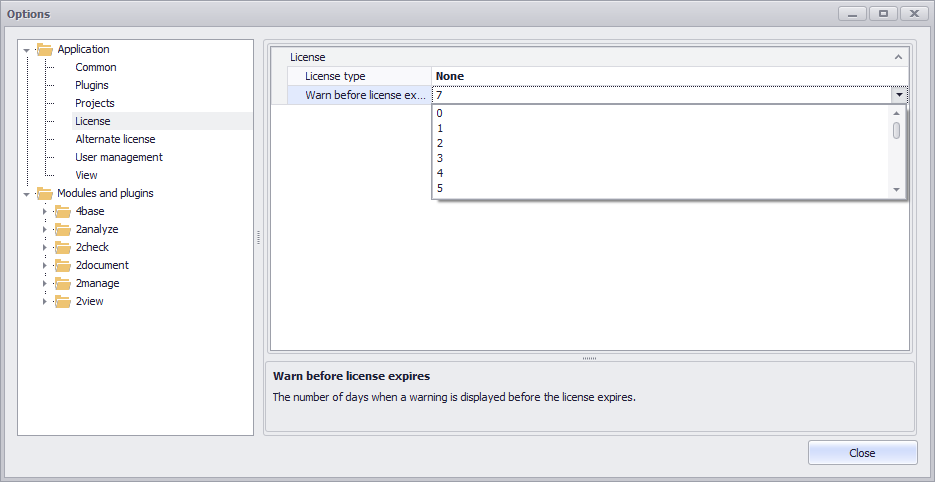
Figure 2 - Warning license expiration
Here you can now select the desired license type, license file, license server and license server triad are available.
In addition, you can set how many days (max. 30) before the expiration of a borrowed (server) license an info message should be displayed (see Figure 2).
Depending on the license type, different additional settings are necessary - for the license type license file, for example, the path to the corresponding license file must be specified.
If you want to use a license server, you will need to specify the connection details for this, as shown in Figure 4.
You in particular need to specify the port and server address. If you want to use a license server triad, you need to enter the connections details for each of the three servers.
Once you have set up the license, you will need to restart the application. SimAssist is then ready for active use.
As soon as SimAssist is connected to a license server, a list with the modules to be activated appears in the lower part of the settings dialog. From this list, the modules to be licensed can be selected (see Figure 5).
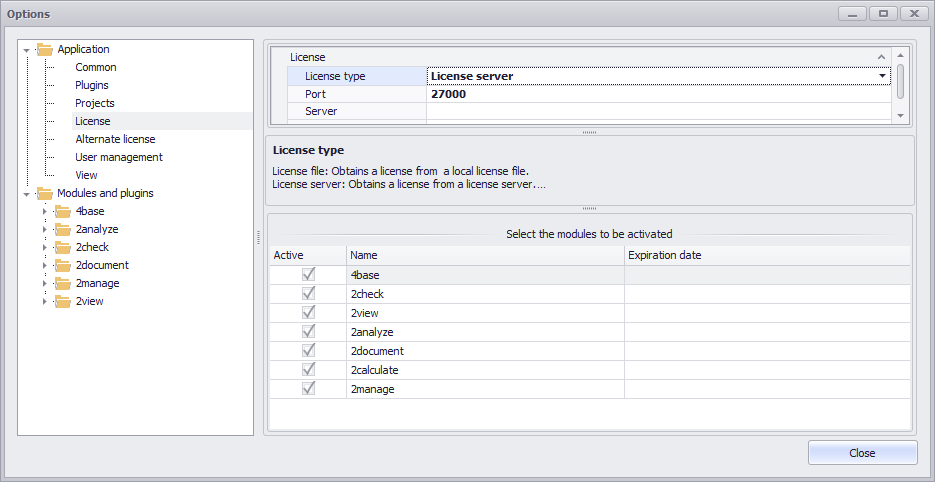
Figure 3 - License server settings with module list
If a module is deactivated by unchecking the corresponding check box, this module is deactivated in the module library when the license server is connected.
It remains in the module library, but can no longer be used. The setting options for the deactivated modules are removed from the options (see Figure 6).

Figure 4 - Active and deactivated modules
© SimPlan AG - Hanau District Court, Commercial Register (Part B) 6845 - info@simplan.de - www.simplan.de/en