Contents
In the following the buttons from the menu are listed and their function is explained.
Button |
Description |
||
|
Opens a dialog to import a configuration. This must be in *.2control format. Details about the XML serialization can be found here. |
||
|
Opens a dialog to export a configuration. This is saved in *.2control format. Details about the XML serialization can be viewed here. |
||
|
Opens a dialog to select the method of experiment generation. Further settings for the respective method can also be parametrized via this dialog. The generation of the experiments is started with a click on OK.
|
||
|
Deletes the experiments selected in the middle view. The experiments are deleted from the view as well as from the connected database. |
||
|
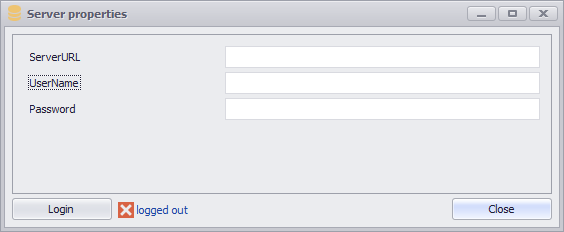
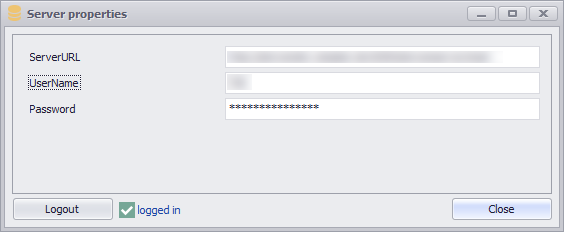
Establishes a connection to the server*. In the following dialog, connection data can be specified. A click on logged out or logged in checks the connection to the server and returns a corresponding message
*Server connection information: Server SimController for processing information, simulations and user login. •Login with user name and password •Generation of experiment series •Calculation of generated and selected experiments with the set parameters incl. status updates •Each experiment corresponds to a server job (see figure below) |
||
|
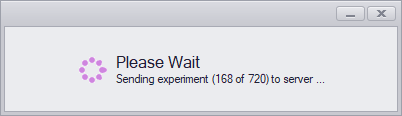
Sends the rows (experiments) selected in the plug-in window to the server for processing. The status of the (running) experiments can be retrieved with the Refresh button.
|
||
|
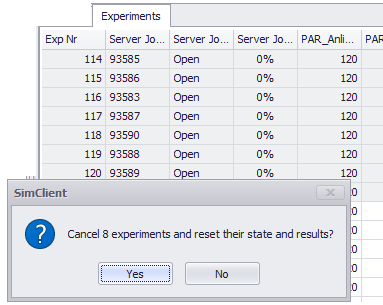
Cancels the execution of the rows (experiments) selected in the plug-in window and resets the results.
|
||
|
Downloads the statistical database generated by the simulation model, if it exists. |
||
|
Selects the transfer mode for jobs to the server. If “Sequential” is selected, the total processing time may be longer. |
||
|
Shows or hides columns (categories) in the experiment list |
||
|
Restores the original layout of the experiment list |








The available columns are listed and explained below. Only those columns are listed that are available regardless of the content of the respective database / simulation model.
All other columns depend on the content of the respective database and the structure defined in it. The sequence, as well as the structure is specified and/or created over the module on simulation side (in the model).
Value |
Description |
ExpNr |
Ascending experiment number |
Server Job ID |
Ascending server job ID. Is used for the status query on the server. |
Server Job State |
Status of the respective experiment on the server, with the following possible states: •New •Open •Started •Finished |
Server Job Progress |
Percentage of progress of the experiment on the server. This column is only displayed in the user interface and is not present in the database. |
© SimPlan AG - Hanau District Court, Commercial Register (Part B) 6845 - info@simplan.de - www.simplan.de/en