Installation instructions for Python
In order to ensure smooth operation with the Python Statements plug-in, some requirements must be met, which are explained below:
Contents
2. Configure and install Python
3. Check Python and install needed packages
•Download the current Python installation (recommended version: Python 3.10)
|
Information: The installation instructions are based on Python version 3.9.6, as this was the latest Python version at the time the help file was created. |

2. Configure and install Python
•After downloading the installer, run it by double clicking on the *.EXE file.
•Activate the check box Add Python 3.9 to PATH
•Select Customize installation to continue

Figure 1 - Python Installer
•Keep optional features as in default setting
•Click on Next to continue
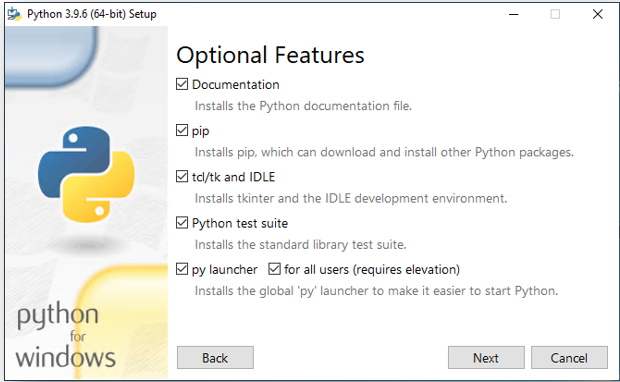
Figure 2 - Python installer
•Select advanced options as shown in the screenshot
oPath for installation should automatically be "C:\Program Files\Python39"
oPath will be needed later in SimAssist
•Click on Install to install Python

Figure 3 - Python installer
•After successful installation the option Disable Path length limit can be selected optionally
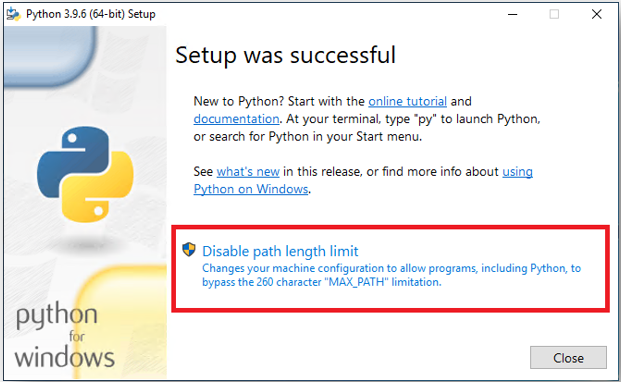
Figure 4 - Python installer
3. Check Python and install needed packages
•Open the command line as administrator and enter the following commands one after the other:
•where python
oshows the path where Python is installed
oshould be "C:\Program Files\Python39"
•python -m pip install --upgrade pip
ochecks the installed Python version and upgrades it if necessary
•pip install -r path\to\requirements.txt
oinstalls all packages that are in the file "requirements.txt"
oThe path to this file must be specified in the command
oExample: pip install -r C:\Users\tobias.semmelmann\Desktop\requirements.txt
•After successful Python installation the tool Graphviz must be installed for the correct execution of the Python scripts:
•Download depending on your operating system
•choose option Add Graphviz to the system PATH for all users, otherwise use default settings
•Restart PC after installation
•Test in command line: Command: where dot should return result
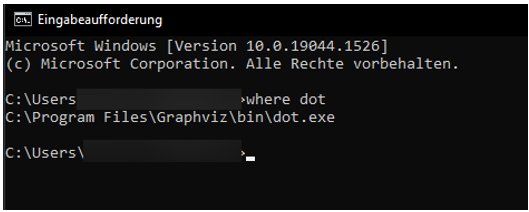
Figure 5 - Check Graphviz installation
•If the command where dot does not return a result:
•Either reinstall Graphviz
•Or "This PC" -> right click -> Properties -> Advanced System Settings -> Advanced -> Environment Variables -> System Variables -> Path -> Edit -> New
-> Add "C:\Program Files\Graphviz\bin" (use installation path) -> Restart PC
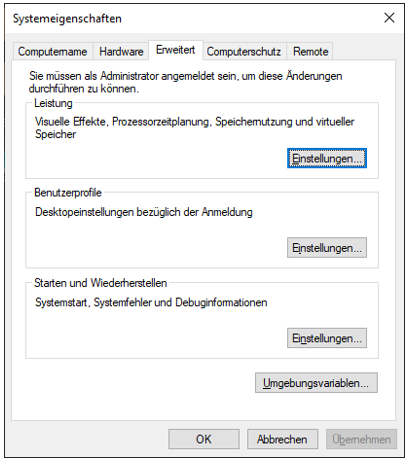
Figure 6 - Check Graphviz installation
After all steps have been successfully completed, the Python Statements plug-in is ready to use.
© SimPlan AG - Hanau District Court, Commercial Register (Part B) 6845 - info@simplan.de - www.simplan.de/en