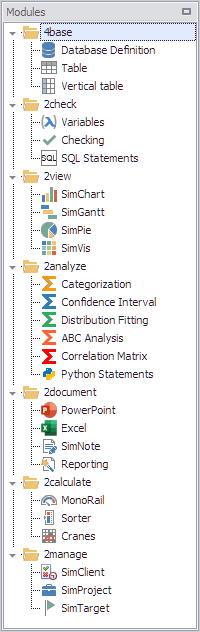
Figure 1 - Plug-in library |
The Plug-In Library (Modules) All the available plug-ins are listed in the plug-in library (see Figure 1), sorted by module. The size of the library depends on the modules licensed and can be tailored to your individual requirements. From the library, the individual plug-ins can be added to a project, and thereby released for use. The plug-ins are organized in the thematic modules below, the scope of which also depends on the modules licensed. •4base •2check •2view •2analyze •2document •2calculate •2manage
The plug-in library has a classic, expandable tree structure. To maintain an overview of the library at all times, the individual modules can therefore be collapsed, and thereby hidden, or expanded, and thereby displayed. For this purpose, use the arrow icons in front of the relevant modules. |
Context Menu
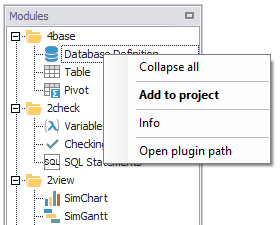
To access the context menu for the plug-in library, right-click any plug-in (see Figure 2).
Here, you can open the information dialog box, containing information about the plug-in version and path, for example, or the directory for the relevant plug-in.
You can also choose to add the plug-in selected to the current project.
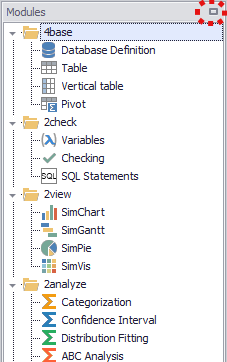
You can choose the icon in the top right-hand corner of the plug-in library (highlighted here in orange) to automatically hide the library in order to free up space for the software’s other windows
and thereby always have the best possible overview for the situation at hand.
To display the library again, simply move the cursor over the word Modules (see Figure 3).
If you want the plug-in library to be permanently displayed again, all you need to do is choose the icon in the top right again, and the library will be docked again.
Figure 2 - Context Menu |
Figure 3 - Hide/display plug-in library |
How to Position the Plug-In Library (Docking)
You can position the Plug-in library at various places in the frame application. To find out how to move the relevant window, please see the Docking section.
You can dock the Plug-in library window at a total of four places (left, right, top, bottom) in the frame application and position it there.
© SimPlan AG - Hanau District Court, Commercial Register (Part B) 6845 - info@simplan.de - www.simplan.de/en