This section of the SimAssist help documentation aims to group together the most frequently asked questions about the software and to offer quick help on concrete problems.
Contents
1.1 Is there a back/undo function?
1.2 Is there a difference between the plug-in library and the modules?
1.3 What is the difference between the upgrade and refresh functions?
1.4 What are SimAssist modules?
1.5 Can a project file be opened by double clicking?
1.6 How to restore a backup (*.bak file)
2.1 Unwanted "~TMP" tables in the data area when connected to ACCESS database
2.2 Timestamps in SQLite database cause errors - how to prevent the problem
3.1 Adjust automatically generated page margin values on the Y-axis
3.2 Show percentage values from 0-100 on the Y-axis
3.3 Textpattern to use in labels
4.1 I cannot scroll the manually created SimNote templates - how can i resolve this problem?
1.1 Is there a back/undo function?
No. For technical reasons, no such function is possible in SimAssist.
1.2 Is there a difference between the plug-in library and the modules?
The plug-in library is simply the framework for the modules, that is, the individual modules are listed here, together
with their plug-ins, and the relevant plug-ins can be added to a project from here.
1.3 What is the difference between the upgrade and refresh functions?
Upgrade
When you choose the Upgrade button, the Plug-in Upgrade dialog box will be shown, via which you can install any available upgrades for plug-ins. |
Refresh
When you choose the Refresh button, the plug-in currently selected is refreshed – that is, all data queries and visualizations are reloaded. This means that you can, for example, respond to any changes in the connected databases and also make the relevant changes visible in SimAssist. |


1.4 What are SimAssist modules?
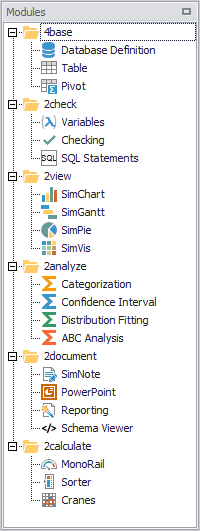
Figure 3 - SimAssist modules |
Modules group the individual plug-ins within the software and are listed in the plug-in library (see Figure 3). For example, the 2check module comprises the plug-ins: •Checking •SQL Statements •Variables
The size of the plug-in library, and therefore the number of modules, depends on which license packages you have bought. |
1.5 Can a project file be opened by double-clicking?
Yes, that works since version 2.1. If no link to an older version of SimAssist is set, this link is created when installing SimAssist 2.1 or higher.
If a link to a *.simassist file is already set, it will not be overwritten by the installation setup, but must be reset by the user.
1.6 How to restore a backup (*.bak file)
To restore a backup file (projectname.simassist.bak) it is sufficient to remove the extension *.bak from the file name (Attention, the option Show file extensions must be activated in the file explorer!)
Afterwards, the project file can be opened again with SimAssist (see also Creating a project).
2.1 Unwanted "~ TMP" tables in the data area when connected to an ACCESS database
Why are tables starting with "~ TMP" displayed?
These are remnants of deleted tables. For example, if you open SimAssist and its attached ACCESS database at the same time, delete a table in ACCESS and update SimAssist, SimAssist displays the deleted table starting with "~ TMP".
Can such objects be hidden automatically?
Not at this moment. The database schema is retrieved while listing the data contents. "~ TMP" tables are listed there under the type TABLE and are not to be distinguished from conventional tables (except the name), which is why they are listed.
How can I remove these tables?
Closing the ACCESS database should perform the internal cleanup process, which means that if SimAssist is updated again, these tables no longer appear in the data area.
However, it may happen that these "~ TMP" objects still appear in the data area. To change this, navigate to the File tab in your ACCESS database and execute Compress and repair the database.
2.2 Timestamps in SQLite database cause errors - how to prevent the problem
SQLite doesn't own a special format for Timestamps (see http://www.sqlite.org/datatype3.html). Because of that in SQLite Timestamps have to be formatted correctly (see https://www.sqlite.org/lang_datefunc.html). If Timestamps are in a wrong format, the following error could appear for example:
---> System.Exception: Could not fill DataTable. SQLStatement: SELECT * FROM "TableName"
---> System.FormatException: String was not recognized as a valid DateTime.
3.1 Adjust automatically generated page margin values on the Y-axis
Depending on the nature of the data, it may happen that the representation on the Y-axis does not start at 0, but at a value below.
This can be adjusted in the Chart Designer via Primary AxisY - Properties - Visual Range
Here you can manually enter the desired values (see Figure 2).
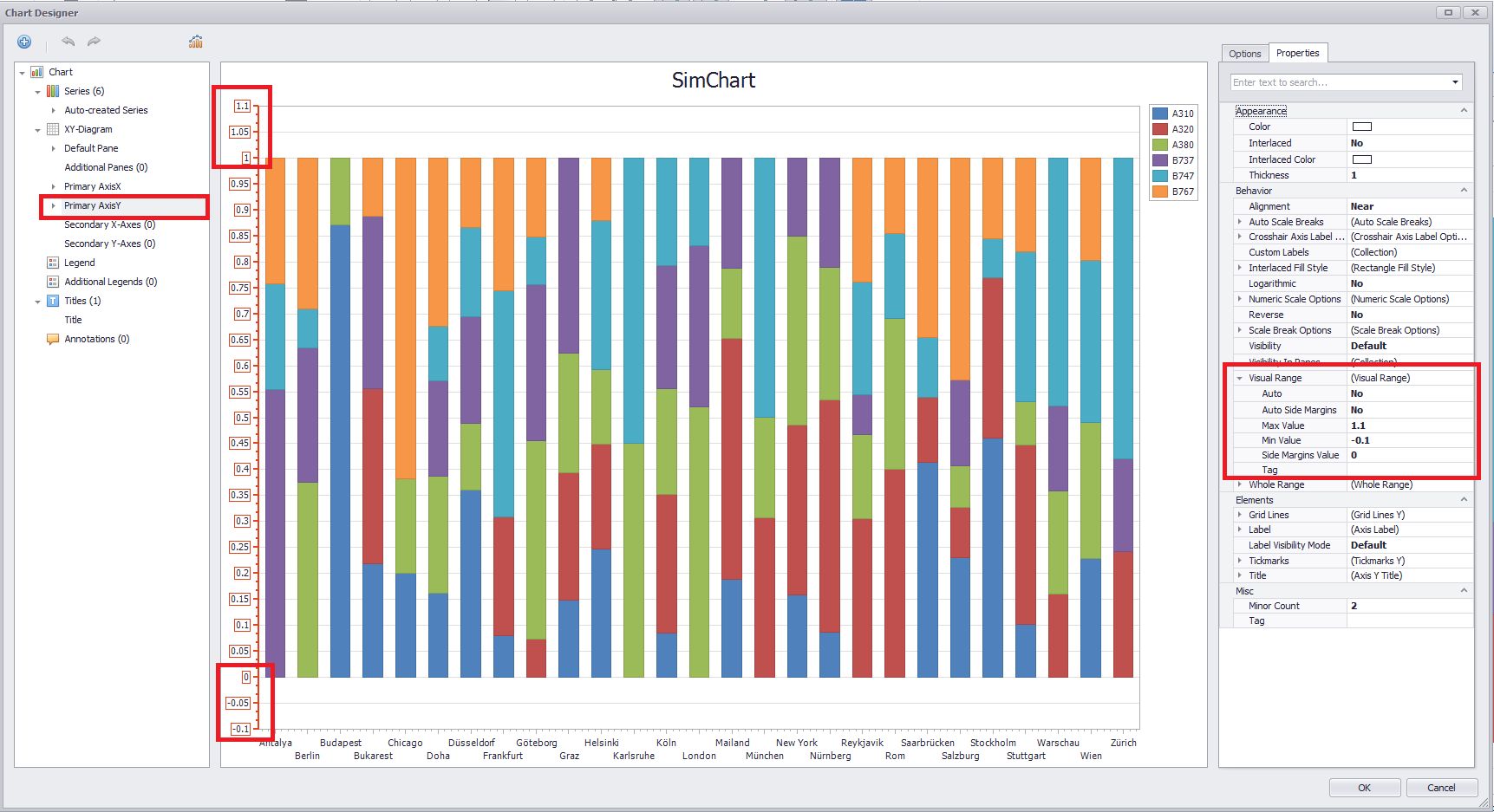
Figure 2 - Side margins value in the Chart Designer
3.2 Show percentage values from 0 - 100 on the Y-axis
The default Y-axis labeling of charts (for example, 100% stacked column) is currently between 0 and 1.
To change the representation of the Y-axis to, for example, percentages, the text pattern in the Chart Designer must be adjusted:
Open the chart designer via the button in the menu of the plug-in and select the entry Primary axis Y on the left side.
Then focus on the tab Properties on the right side and click on the button at the end of the line under Elements - Label - Textpattern.
This opens a new window where you can enter any text pattern for the Y-axis label (see Figure 1).

Figure 1 - Chart Designer text pattern Y-Axis
3.3 Textpattern to use in labels
The following table shows an overview of text patterns that can be used for labels.
Pattern |
Description |
{S} |
Displays the name of the series |
{A} |
Displays a series point argument |
{V} |
Displays series point values |
Pie (Donut) series specific placeholders |
|
{VP} |
Displays series point values as percentages. |
{TV} |
Displays a total group value. |
Stacked series specific placeholders |
|
{VP} |
Displays series point values as percentages. |
{G} |
Displays the name of a stacked group. |
{TV} |
Displays a total group value. |
Bubble series specific placeholders |
|
{W} |
Displays the weight. |
Range series specific placeholders |
|
{V1} |
Displays the first value. |
{V2} |
Displays the second value. |
{VD} |
Displays the duration between the first and second data point values formatted using a common time format (e.g. HH:MM:SS for date time values and #.## for numeric values). |
{VDTD} |
Displays the duration between the first and second date-time data point values in days. |
{VDTH} |
Displays the duration between the first and second date-time data point values in hours. |
{VDTM} |
Displays the duration between the first and second date-time data point values in minutes. |
{VDTS} |
Displays the duration between the first and second date-time data point values in seconds. |
{VDTMS} |
Displays the duration between the first and second date-time data point values in milliseconds. |
Financial series specific placeholders |
|
{OV} |
Displays the open value. |
{HV} |
Displays the high value. |
{LV} |
Displays the low value. |
{CV} |
Displays the close value. |
4.1 I cannot scroll the manually created SimNote templates – how can I resolve this problem?
Add the property <AUTOSCROLL>True</AUTOSCROLL> to your XML template PANEL.
This ensures that all your template’s content remains accessible via the scroll bars.
© SimPlan AG - Hanau District Court, Commercial Register (Part B) 6845 - info@simplan.de - www.simplan.de/en