A click on the Colors button opens a dialog, where color schemes are organized and assigned/adopted to/from charts:
|
Information A standard color palette can be stored in the general options of SimAssist under Application - View. The color editor can be opened using the three dotted button |

 at the end of the line.
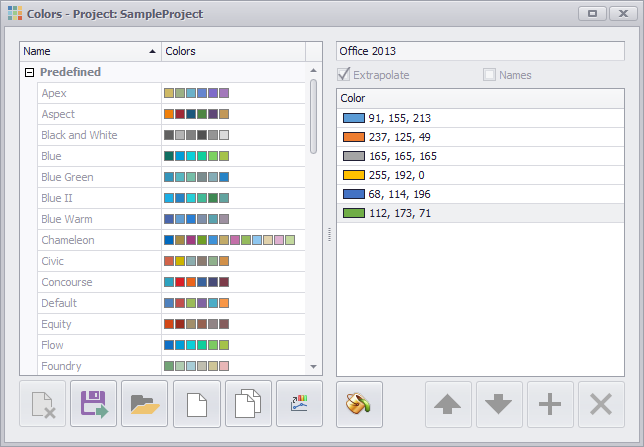
Figure 1 - Color schemes
In the left part of the color dialog, all standard color palettes are listed. The desired color palette can be applied to the diagram by double-clicking on it.
Standard color palettes cannot be edited or changed, so they are greyed out. The buttons available in the color dialog are explained below:
Button |
Description |
|
The Extrapolate check box is checked by default. This option is responsible for automatically using a lighter shade of the first color of the color palette once all colors have been used once. This case occurs if more elements are to be colored than there are colors in the color palette. This function can be deactivated by unchecking the box. As a result, the color shade will not change automatically the next time it is used. |
|
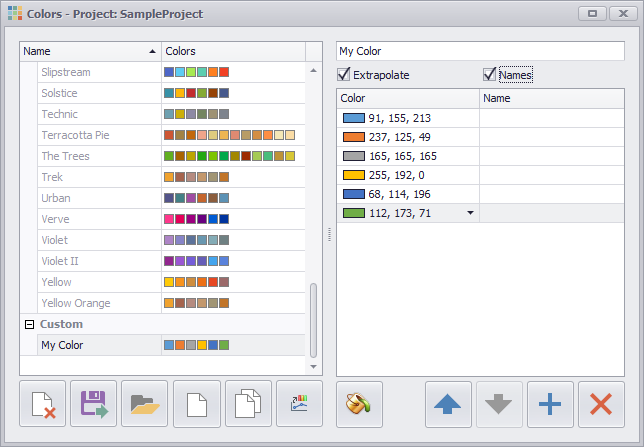
Activating the check box Names will display a new column in the list of colors of the selected color palette (see figure 2). Now a name can be assigned for each color of the palette. If this name matches (exactly) the name of an existing row in the diagram, the color is linked to this row.
Figure 2 - check box Names active |
|
Deletes the currently selected custom color scheme(s) from the Custom list |
|
Exports the currently selected, custom color scheme(s) from the Custom list |
|
Imports a new color scheme and adds it to the My Documents list, the following files are supported for color scheme import: [Standard] Export of SimAssist Palettes Editor of the PivotChart component (e.g. SimChart) <Palettes> <Palette Name="Flow"> <PaletteEntry Color="#0F6FC6" Color2="#0A4E8B" /> <PaletteEntry Color="#009DD9" Color2="#006E98" /> </Palette> </Palettes>
Export out of the SimView plug-in <?xml version="1.0" encoding="utf-8"?> <ArrayOfColorSchemeData xmlns:xsi="http://www.w3.org/2001/XMLSchema-instance" xmlns:xsd="http://www.w3.org/2001/XMLSchema"> <ColorSchemeData Name="Blue_new" Category="Default"> <Colors> <ColorSchemeColorData Name="" R="15" G="111" B="198" /> <ColorSchemeColorData Name="" R="0" G="157" B="217" /> </Colors> </ColorSchemeData> </ArrayOfColorSchemeData>
Color Palettes out of the SimView Standalone application <SimView> <Farbschemas> <Schema Name="Rainbow"> <Color Name="" R="255" G="0" B="0" /> <Color Name="" R="255" G="128" B="0" /> </Schema> </Farbschemas> </SimView>
Simple color list Red Fuchsia DarkGoldenrod #800080 0,255,0 |
|
Creates a new, empty color scheme and adds it to the Custom list |
|
Duplicates the currently selected color scheme and adds it to the Custom list as a copy. The number "1" is appended to the name of the color scheme. |
|
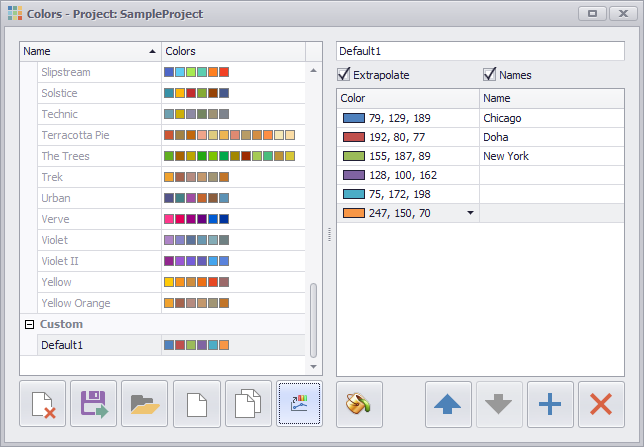
Creates a new color scheme from the diagram colors of the currently selected diagram and adds it to the Custom list. The check box Names is automatically activated and the existing colors are assigned to existing rows (see Figure 3).
Figure 3 - Read colors and names |
|
Applies the currently selected color scheme on the currently focused diagram |
|
Moves the currently selected color(s) of a palette one position up |
|
Moves the currently selected color(s) of a palette one position down |
|
Adds a new color to the currently selected color palette |
|
Deletes the currently selected color(s) of a color palette |






© SimPlan AG - Hanau District Court, Commercial Register (Part B) 6845 - info@simplan.de - www.simplan.de/en