A click on the Transfer settings button in the SimChart ribbon opens a dialog that can be used to read settings from the plug-in currently in use and apply them to other plug-ins in the project.

Figure 1 - Transfer settings
Settings from the currently focused plug-in can be read out using the Read settings button.
Alternatively, the desired plug-in from which the settings are to be read can be dragged and dropped onto the settings dialog.
The Element column lists diagram areas from which settings can be read/imprinted. The corresponding settings are listed in the Value column.
To read or apply settings, the desired fields/settings must be selected in both columns.
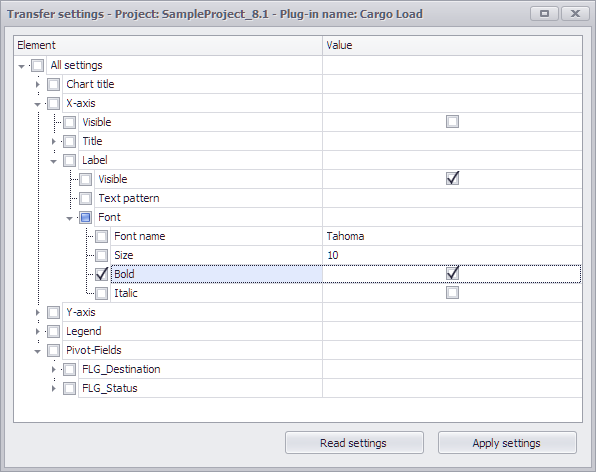
Figure 2 - Mark settings
To apply the settings to one or more SimChart plug-ins, the desired plug-ins must be marked in the project content area and then click on Apply settings in the dialog.
In the Pivot fields section, the rows contained therein can be sorted either in ascending or descending order (numerically or alphabetically).
A user-defined sorting can also be carried out here. To do this, the custom order must first be selected.
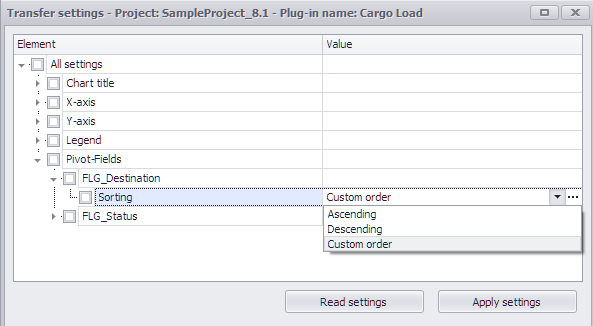
Figure 3 - Custom sorting
A click on the three dotted button  opens a new dialog in which the rows can be sorted and rearranged as required
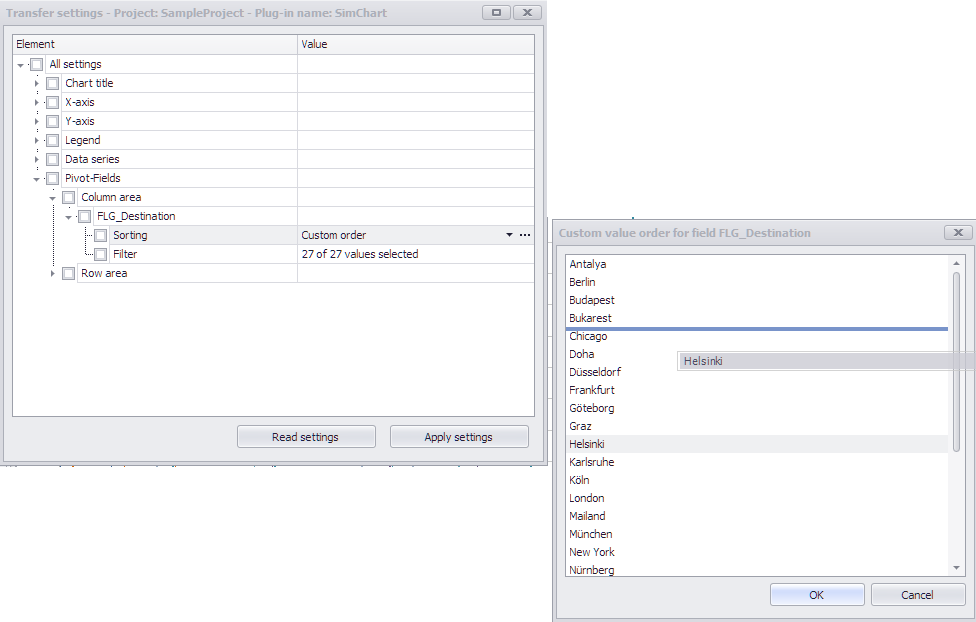
Figure 4 - Custom sorting
The Filter setting can be used to read or apply filter criteria for the respective field/column.
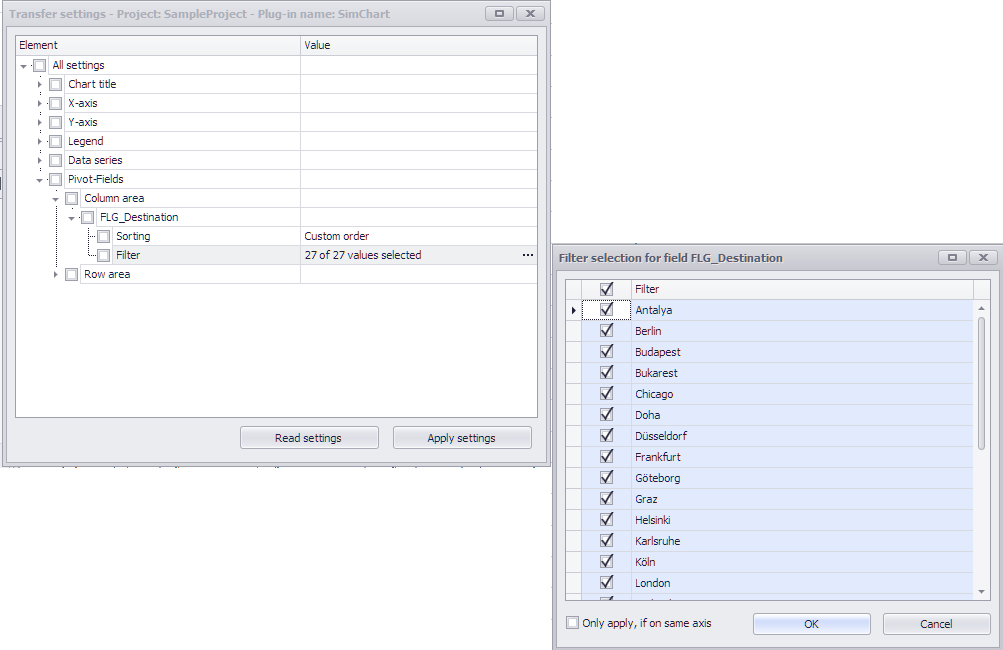
Figure 5 - Read / apply filter settings
© SimPlan AG - Hanau District Court, Commercial Register (Part B) 6845 - info@simplan.de - www.simplan.de/en