This section describes buttons in the ribbon bar of the plug-in and explains their functions.
Button |
Function |
||
|
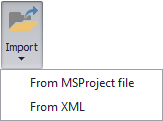
The Import button can be used to import MS Project project plans. To import a *.mpp file, a license for Microsoft Project is required. The import from an XML file currently only works if the XML file was previously exported from the SimProject plug-in, because only then the required structure is available. |
||
|
The button Export opens the Windows Explorer and exports the loaded project plan as XML file. |
||
|
A repeatable chain serves as a parameter for the simulation. To create such a chain, the desired elements must be selected and then the Repeatable chain button must be pressed. Multiple selection of elements is possible by holding down the CTRL key (key combination: CTRL + SHIFT + arrow keys). The representation of the chain can be seen in Figure 1 In the Distribution column, the value 0 is automatically entered. Here the user must enter the probability (value between 0 and 1). Example: Distribution: 0.5 --> With a probability of 50%, the elements of the repeatable chain are executed again.
Figure 1 - Repeatable Chain
By clicking on the name of the repeatable chain, it can be adjusted. A right click opens the context menu, here the element can be expanded and collapsed and deleted.
Figure 2 - Rename Element
To create and use a repeatable chain, the following requirements must be met: •The elements of the chain must be related to each other (predecessor-successor relationship). •The first element of the chain may have multiple predecessors •The last element of the chain may have several successors •Intermediate elements of the chain may have only one predecessor and one successor each •Intermediate elements may not have any branches |
||
|
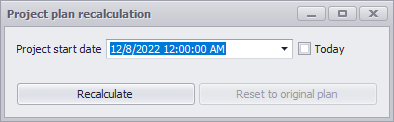
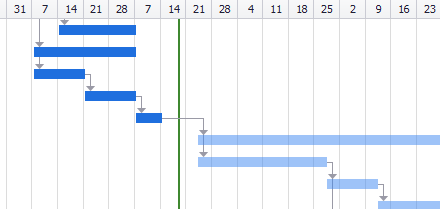
Performs a recalculation of the loaded project plan with selected start date. The green line of the graphical representation marks today's date.
The following properties apply to already completed tasks in the project plan: •completed tasks are marked dark blue •completed tasks have a constant duration in simulation •completed tasks are not taken into account for sequence optimization •result order: first all completed tasks, then the remaining tasks in optimal order
The following specifications are made for the completed status of tasks: •Tasks are either 0 or 100% completed •No transfer of the completed status from MS-Project •All tasks that end before the selected date are considered completed. •Repeatable chains are completed, if all elements end before the selected date. •Started but unfinished tasks are started from the beginning during recalculation |
||
|
Deletes the currently loaded configuration (project plan) |
||
|
Starts calculation of working time and then updates the Calculated working time column (working days). Prerequisite for the calculation of the working time is the use of a defined formula in the Formula column. |
||
|
Starts the simulation of the project plan |
||
|
Switches to the configuration view |
||
|
Switches to the result view |
||
|
Opens the parameter editor. Details can be found in chapter Options - Editors in section Parameter Editor |
||
|
Opens the distribution editor. Details can be found in chapter Options - Editors in section Distribution editor. |
||
|
Opens the formula editor. Details can be found in chapter Options - Editors in section Formula editor. |




© SimPlan AG - Hanau District Court, Commercial Register (Part B) 6845 - info@simplan.de - www.simplan.de/en