Setup installs SimAssist on the computer for all users and needs to be run with administrator rights.
For this purpose, run the SimAssist Setup Wizard file and follow the instructions. First, you can select the desired language (see Figure 1).

Figure 1 - Language selection
If Setup does not find components that are required or recommended for SimAssist to run properly, a corresponding message will be displayed (see Figure 2).
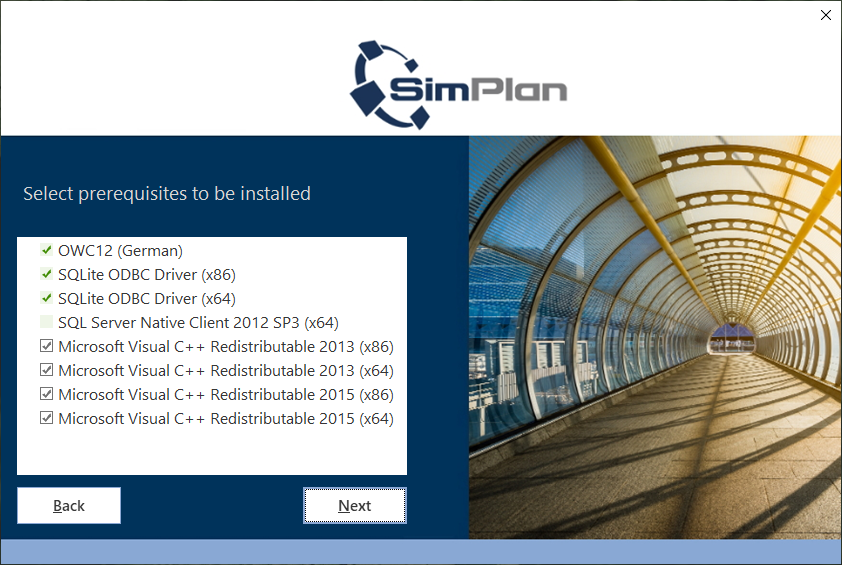
Figure 2 - Installation of required components
The following table explains these components / dependencies in more detail.
Component |
Required for installation |
Included in setup |
Dependent modules |
OWC12 (Office Web Components 2003) |
No |
Yes |
SimView plug-in (Chart component) |
SQLite ODBC Driver |
No |
Yes |
SimView plug-in (SQLite database access) |
SQL Server native Client 2012 |
No |
Yes |
Database definition (Access to SQL Server database) |
Visual C++ 2010 Runtime x86 |
Yes |
Yes |
SimAssist |
.Net Framework 4.0 |
Yes |
No |
SimAssist |
WIBU-Key Driver |
only if working with license-file and dongle |
No |
SimAssist |
Oracle Client |
No |
No |
When working with oracle-databases, 32 bit Oracle Client 11.2.0.3 and Oracle Data Provider for .Net 11.2.0.3.0 (part of Oracle Data Access Components (ODAC)) must be installed |
Microsoft Excel |
No |
No |
Needed for exporting to Excel |
Microsoft PowerPoint |
No |
No |
Needed for exporting to PowerPoint |
We recommend that you install these components. The SimAssist installation process then starts automatically.
In the next step, select the path where you want Setup to install SimAssist and then choose Install to start the installation process.
The Setup Wizard now installs SimAssist on your system and creates a link on your desktop via which you can launch the software.
Once installation is complete, SimAssist opens automatically, and the software is ready to use.
Silent Install
To ensure that no user interfaces are displayed during the installation process, Setup can be run with the following parameter:
Setup.exe /q APPDIR="C:\myDirectory"
APPDIR defines the installation directory and can be omitted for installation in the default directory.
|
Attention The prompt or link via which Setup is called must be launched with administrator rights |

Version Upgrade
To upgrade to a new SimAssist version, you can simply run the Setup Wizard for the new version. SimAssist installs the latest version additionally to an existing version on the system.
When the new version is started for the first time, a dialog provides the option to apply the settings of one of the versions already installed on the system.
Example project since SimAssist 3.0
Since SimAssist version 3.0, the first time the software is started after installation, a sample project is loaded to make it easier to get started in SimAssist.
The project is saved in the general user directory and can be deleted or moved at any time.
© SimPlan AG - Hanau District Court, Commercial Register (Part B) 6845 - info@simplan.de - www.simplan.de/en